Today, users expect software that works seamlessly on Windows, macOS, and Linux without having to download three different apps. Building separate native apps for each platform is expensive, slow, and hard to maintain. That is exactly the problem Electron was designed to solve.
Whether you are a developer exploring a new framework, a founder evaluating tech stacks, or someone who simply wants to understand what Electron software is and how it works, this guide covers everything clearly and completely.
What Is Electron? (Simple Definition)
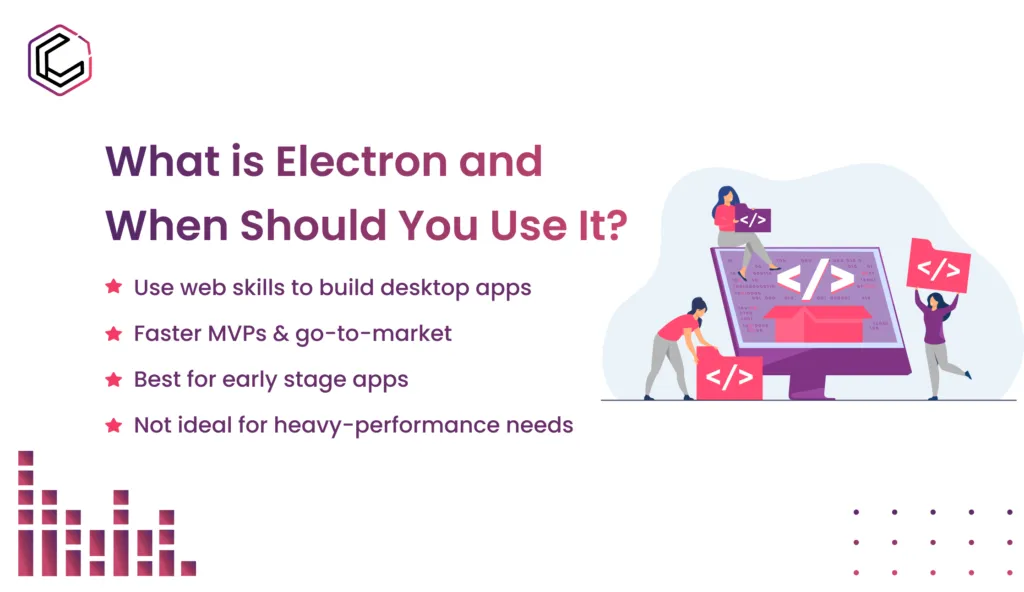
Electron is an open-source framework that lets developers build cross-platform desktop applications using web technologies HTML, CSS, and JavaScript.
Instead of writing separate code in Swift for macOS, C++ for Windows, or GTK for Linux, you write one web-based application and Electron packages it into a native desktop app for all three platforms simultaneously.
Under the hood, Electron bundles two powerful engines together:
- Chromium the same rendering engine that powers Google Chrome, used to display your app's user interface
- Node.js a JavaScript runtime that gives your app access to the operating system, file system, system tray, notifications, and more
The result is a desktop application that looks and behaves like a native app to the user, while being built entirely with the web skills your development team already has.
Electron was originally created by GitHub in 2013 (under the name Atom Shell) to power their Atom code editor. It was open-sourced in 2014 and has since become the industry standard for JavaScript-based desktop app development.
What Is an Electron App?
An Electron app is any desktop application built using the Electron framework. From the user's perspective, it looks and works like any other native application it has its own window, appears in the taskbar or dock, can send system notifications, and installs like a regular program. The user typically has no idea it is built on web technology.
From a developer's perspective, an Electron app is a web application (HTML, CSS, JavaScript) combined with a Node.js backend that communicates with the operating system. The whole thing is bundled into a distributable package a .exe on Windows, a .dmg on macOS, or an AppImage on Linux.
Well-Known Examples of Electron Apps
Some of the most widely used software in the world is built with Electron. You have almost certainly used several of these without knowing:
|
App |
Category |
Used by |
|
Visual Studio Code |
Code Editor |
~15 million developers |
|
Slack |
Team Communication |
Millions of businesses |
|
Discord |
Chat & Voice |
500M+ registered users |
|
Notion |
Productivity / Notes |
Millions worldwide |
|
Figma Desktop |
UI/UX Design |
Designers globally |
|
1Password |
Password Manager |
Enterprise & consumers |
|
WhatsApp Desktop |
Messaging |
Billions of users |
|
Postman |
API Testing |
25M+ developers |
|
Twitch Desktop |
Game Streaming |
Millions of gamers |
|
GitHub Desktop |
Version Control |
Millions of developers |
|
Microsoft Teams |
Collaboration |
Enterprise worldwide |
|
Atom |
Code Editor |
Created by GitHub, built on Electron |
The fact that VS Code, Slack, and Discord apps used by hundreds of millions of people are all Electron apps is a strong indicator of how production-ready and reliable the framework is.
What Is Electron Used For?
Electron is used to build desktop applications across a wide range of categories. Here are the most common use cases:
Developer Tools and Code Editors
This is where Electron got its start. Visual Studio Code and GitHub Desktop are both built with Electron and serve as the gold standard for what the framework can produce. If you are building a developer tool, CLI companion, or IDE extension with a GUI, Electron is a natural fit.
Team Communication and Collaboration Apps
Slack, Microsoft Teams, and Discord are all Electron apps. The reason is straightforward: these products already had mature web apps and needed to offer desktop versions with native notifications, system tray support, and offline functionality without rebuilding everything from scratch.
Productivity and Note-Taking Tools
Notion's desktop app is built on Electron. Productivity tools benefit from Electron's ability to access the local file system, support offline use, and deliver a more controlled experience than a browser tab.
Design and Creative Software
Figma's desktop client uses Electron to wrap their web-based design tool in a native window, giving it system-level file access and a more focused, distraction-free environment than a browser.
Security and Authentication Apps
Password managers like 1Password use Electron because they need tight OS integration (clipboard access, browser extensions, system authentication prompts) while maintaining a consistent cross-platform codebase.
Internal Business Tools and Dashboards
Many companies build internal tools with Electron inventory systems, customer support dashboards, point-of-sale software, kiosk interfaces, and data visualisation tools. These benefit from Electron's ability to run offline and access local hardware like printers, scanners, and USB devices.
Chat and Messaging Apps
WhatsApp Desktop and many other messaging clients are built with Electron. The web team's existing code can be reused, and native features like desktop notifications and background running are added through Electron's APIs.
How Does Electron Work? (Architecture Explained)
This is the most searched but least explained aspect of Electron. Understanding how Electron works internally makes you a much better Electron developer and helps you diagnose performance and security issues.
The Two-Process Model
Every Electron application is built around two types of processes: the Main Process and one or more Renderer Processes. These two communicate with each other through a messaging system called IPC (Inter-Process Communication).
┌─────────────────────────────────────────────────┐
│                  Electron App                   │
│                                                 │
│   ┌──────────────────┐    ┌──────────────────┐  │
│   │   Main Process   │    │Renderer Process  │  │
│   │   (Node.js)      │◄──►│  (Chromium)      │  │
│   │                  │ IPC│                  │  │
│   │ - App lifecycle  │    │ - UI / HTML/CSS  │  │
│   │ - Window mgmt    │    │ - JavaScript     │  │
│   │ - File system    │    │ - React/Vue/etc  │  │
│   │ - Native APIs    │    │ - User events    │  │
│   └──────────────────┘    └──────────────────┘  │
│                                                 │
└─────────────────────────────────────────────────┘
The Main Process
The Main Process is the backbone of every Electron app. It runs Node.js and is responsible for:
- Starting the application and managing its lifecycle (open, minimise, close, quit)
- Creating and managing BrowserWindows each window in your app is a separate BrowserWindow instance
- Accessing native OS features like the file system, system tray, menus, notifications, and clipboard
- Handling application-level events like app.on('ready'), app.on('window-all-closed'), etc.
There is exactly one Main Process per Electron app. Think of it as the app's "server" it has full Node.js capabilities and full OS access, but it does not render any UI directly.
js
// main.js the Main Process entry point
const { app, BrowserWindow } = require('electron');
app.whenReady().then(() => {
const win = new BrowserWindow({
width: 1200,
height: 800,
webPreferences: {
contextIsolation: true, // Security best practice
nodeIntegration: false, // Security best practice
}
});
win.loadFile('index.html'); // Load your web UI
});
The Renderer Process
Each BrowserWindow runs its own Renderer Process. The Renderer Process is essentially a Chromium browser tab it renders HTML, CSS, and JavaScript just like a web page. Your entire user interface lives here.
The key difference from a regular browser tab is that the Renderer Process can communicate with the Main Process via IPC to request OS-level operations reading a file, sending a notification, or opening a save dialog.
By default (and by best practice), the Renderer Process does not have direct access to Node.js APIs. This separation is a critical security boundary.
js
// renderer.js runs in the browser context
document.getElementById('save-btn').addEventListener('click', () => {
// Ask the Main Process to save the file via IPC
window.electronAPI.saveFile(document.getElementById('content').value);
});
IPC How the Two Processes Talk
IPC (Inter-Process Communication) is the messaging bridge between the Main Process and Renderer Processes. It works like an event system:
- The Renderer sends a message (e.g., "save this file")
- The Main Process receives it, performs the OS operation, and sends back a response
js
// In the preload script the secure bridge
const { contextBridge, ipcRenderer } = require('electron');
contextBridge.exposeInMainWorld('electronAPI', {
saveFile: (content) => ipcRenderer.invoke('save-file', content)
});
// In main.js handles the request
ipcMain.handle('save-file', async (event, content) => {
await fs.promises.writeFile('/path/to/file.txt', content);
return { success: true };
});
The Preload Script
The preload script is a special script that runs before the Renderer Process loads your web page. It has access to both Node.js APIs and the browser's window object, making it the ideal place to create a safe, controlled bridge between your web UI and the Main Process using contextBridge.
This three-layer architecture Main Process → Preload Script → Renderer Process is the foundation of secure Electron application design.
How Electron Packages Your App
When you build and distribute an Electron app, the packager (Electron Builder or Electron Forge) bundles together:
- The Electron runtime (Chromium + Node.js binaries)
- Your application code (HTML, CSS, JS, assets)
- Your Node.js dependencies
The result is a self-contained, standalone executable that users can install and run without needing Node.js, Chrome, or any other dependencies on their machine. This is why Electron apps tend to be larger in file size (typically 80–150 MB) they include a full browser engine.
What Is Electron as Software? (The Product Perspective)
From a software product perspective, Electron is a runtime environment and build toolchain not just a library you import. It sits between your application code and the operating system, managing the entire lifecycle of your desktop program.
When a user downloads and installs an Electron app, here is what they actually get:
- A native installer appropriate for their OS (.exe, .dmg, .AppImage, .deb, etc.)
- A self-contained application bundle that includes a trimmed-down version of Chromium
- Your application code, packaged and optionally encrypted inside an asar archive
- A Node.js runtime that handles OS communication
From an IT or enterprise perspective, Electron apps behave like native applications. They can be code-signed, notarised (on macOS), deployed via MDM (Mobile Device Management) systems, and updated silently in the background. They appear in the system's application list, respect OS-level permissions, and integrate with the native file system, clipboard, and notification centre.
Electron is maintained by OpenJS Foundation and is actively developed, with regular releases that track the latest Chromium and Node.js versions. This means security patches and new web platform features flow directly into Electron apps.
What Is Electron Programming? (The Developer Perspective)
Electron programming means writing desktop applications using JavaScript, with Node.js for the backend and any web framework (React, Vue, Angular, Svelte, or plain HTML/CSS) for the frontend.
If you already know web development, you already know most of what you need to build an Electron app. Here is how Electron development is structured:
Languages and Technologies
|
Layer |
Technology |
|
Main Process logic |
JavaScript / TypeScript (Node.js) |
|
UI / Frontend |
HTML, CSS, JavaScript (React, Vue, Angular, Svelte, etc.) |
|
Build tooling |
Webpack, Vite, esbuild |
|
Package & distribute |
Electron Builder, Electron Forge |
|
Testing |
Playwright, Vitest, Jest |
Project Structure
A typical Electron project looks like this:
my-electron-app/
├── src/
│ ├── main/
│ │ └── main.js ← Main Process entry point
│ │ └── preload.js ← Secure IPC bridge
│ └── renderer/
│ ├── index.html ← UI shell
│ ├── App.jsx ← React/Vue component tree
│ └── styles.css ← Styles
├── package.json
└── electron-builder.json ← Build and packaging config
Getting Started with Electron Programming
The quickest way to start is with Electron Forge:
bash
npm init electron-app@latest my-app
cd my-app
npm start
For React-based projects, electron-react-boilerplate gives you a production-ready starting point:
bash
git clone https://github.com/electron-react-boilerplate/electron-react-boilerplate.git
cd electron-react-boilerplate
npm install && npm start
What Makes Electron Programming Different from Web Development
The key differences to understand when transitioning from web to Electron development:
- You control the browser. Unlike web development where users have different browsers and versions, Electron ships with a specific Chromium version. You always know exactly what browser features are available.
- You have OS access. Through Node.js in the Main Process, your app can read and write files, spawn child processes, access USB devices, manage windows, and integrate deeply with the operating system things that are impossible in a browser.
- Security works differently. Because your code has OS access, security is your responsibility. You must configure contextIsolation, manage IPC boundaries carefully, and validate all inputs the browser's sandboxing alone is not sufficient.
- Performance profiles differ. CPU and memory profiling in Electron uses a combination of Chrome DevTools (for the renderer) and Node.js profiling tools (for the main process). Understanding which process is causing a bottleneck is an essential debugging skill.
Why Businesses Choose Electron
At Capital Compute, we work with founders, startups, and established teams who need desktop apps without stretching their timelines or budgets. Here is what makes Electron the right business decision in many scenarios:
One codebase for all platforms. Write once, ship to Windows, macOS, and Linux. This dramatically reduces development cost compared to maintaining three separate native codebases.
Faster time to market. Your existing web team can start building desktop apps immediately no need to hire Swift, Objective-C, or C++ specialists. For startups validating a product idea, this speed advantage is significant.
Reuse your existing web app. If you already have a web application, large portions of the frontend code can be reused directly in Electron. Companies like Slack and Notion built their desktop apps by wrapping and extending their existing web product.
Rich native integrations. Electron is not just a browser wrapper. It gives you deep OS access: file system, system tray, native menus, desktop notifications, global keyboard shortcuts, clipboard management, and more.
Excellent for MVPs and internal tools. If you are validating a new desktop product or building an internal business tool, Electron lets you move fast without a heavy upfront tech investment.
Pros and Cons of Electron
Understanding the trade-offs helps you make the right decision for your specific project.
Pros
Cross-platform from day one. A single codebase produces apps for Windows, macOS, and Linux without platform-specific rewrites.
Leverage existing web skills. Any developer who knows HTML, CSS, and JavaScript can build Electron apps no new language required.
Massive ecosystem. NPM's entire library of packages is available in the Main Process. React, Vue, Angular, and every other frontend framework works in the renderer.
Proven at scale. VS Code, Slack, and Discord apps used by hundreds of millions of people demonstrate that Electron scales to production workloads.
Active maintenance. The framework tracks new Chromium and Node.js releases closely, meaning you get the latest browser APIs and security patches.
Deep OS integration. File system, system tray, notifications, global shortcuts, native menus, clipboard Electron exposes all major OS APIs through a clean JavaScript interface.
Cons
Large bundle size. Every Electron app ships with a full Chromium engine, resulting in installer sizes of 80–150 MB even for simple apps. For comparison, a native macOS app might be 5–20 MB.
Higher memory usage. Each running Electron app has its own Chromium instance, consuming 150–300 MB of RAM at idle. Running multiple Electron apps simultaneously can put real pressure on the system.
Battery and CPU impact. Chromium is not lightweight. On laptops, Electron apps can consume more CPU and battery than equivalent native apps, particularly on older hardware.
Security complexity. The power of Node.js access means security must be actively configured it does not come automatically. Misconfigurations can be exploited.
Not ideal for high-performance workloads. Video editing, real-time 3D rendering, and game engines are poor fits for Electron. Native frameworks handle GPU and CPU-intensive tasks significantly better.
When Should You Use an Electron?
Electron is the right choice when:
- You already have a web app and want to offer a desktop version without rebuilding from scratch
- You need a single codebase that ships to Windows, macOS, and Linux
- Your app is a productivity tool, developer tool, communication app, or internal business tool
- You need OS integrations like file system access, system tray, or desktop notifications
- You are in the early stage of a product and need to move fast
- Your team's expertise is in JavaScript and web technologies